MicroCity
| < 3.2 Editing Scripts | Table of Contents | 3.4 Navigating Scenes > |
3.3 Running Scripts
Running scripts in microcity requires understanding various information in the message bar.
Message Bar
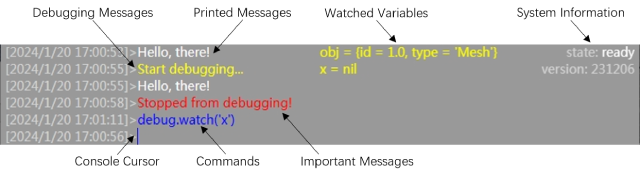
In order to save space, the message bar is usually folded. You can enlarge it when you left-click it. The message bar displays various information as shown in the figure below. When you right-click it, it prompts a console cursor. In this mode, you can enter commands to control the execution of Lua scripts. This is especially useful when debugging scripts. Note that the large amount of messages in the message bar will seriously slow down the script operation. At this time use print() in the console will clear all printout.
Running, Pausing and Stopping
The Lua engine is used to execute scripts. There are four states of the Lua engine in the system information section of the message bar:
- ready: completely stopped and waiting for running
- running: in executing the script
- debugging: executing in debug mode
- paused: execution is suspended
You can click Run to start execution. Click Pause
 to suspend the execution, but this function requires the support of os.getready or scene.render. Click Stop
 to halt the execution or right-click it to kill the execution process and restart the engine.
Debugging
You can start executing the script in debug mode by Right-click Run. Debugging messages are printed in yellow color. Click on the left margin of the Script Editor line number to set breakpoints. The execution will be suspended by these breakpoints or by clicking pause button. Variables in script can be watched by using debug.watch command in the console. Other commands or legal Lua script snippets can be executed in the console to alter the system. Below is a table of debug commands and the corresponding shortcuts.
| Command | Shortcut | Remark |
|---|---|---|
| debug.debug | Enter Debug Mode | |
| debug.cont | F5 | Continue the execution |
| debug.pause | F6 | Pause the execution |
| debug.step | F9 | Step over |
| debug.stepi | F10 | Step in |
| debug.stepo | F11 | Step out |
| debug.watch | Watch variables |
| < 3.2 Editing Scripts | Table of Contents | 3.4 Navigating Scenes > |